


AR Drawing: Sketch & Paint
4.13.09K Reviews
App Specs
- Version
- 5.2.6
- Updated On
- License
- Free
- Downloads
- 10,000,000+
- Developer
- AR Drawing
- Categories
- Art & Design
- Platform
- Android, iOS
Screenshots
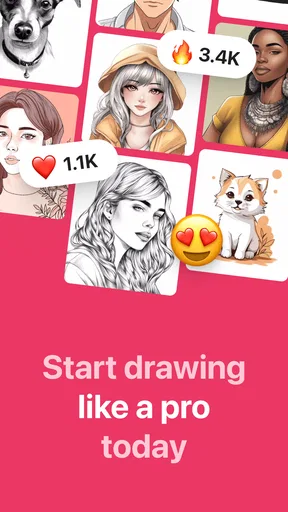
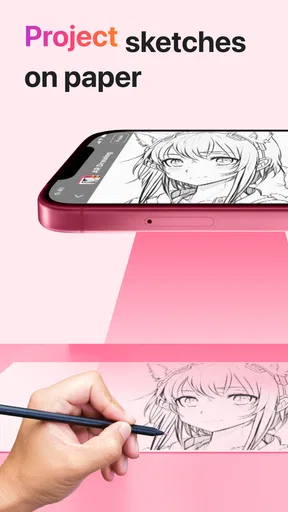
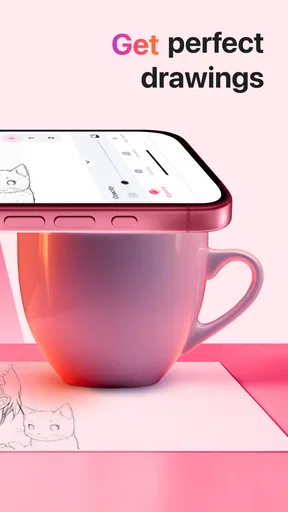
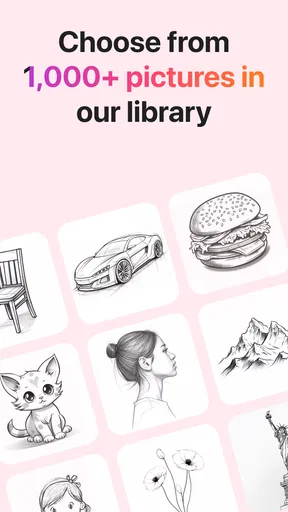
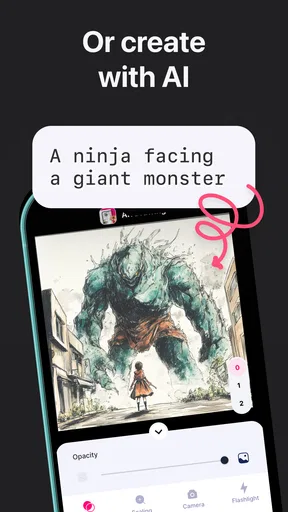
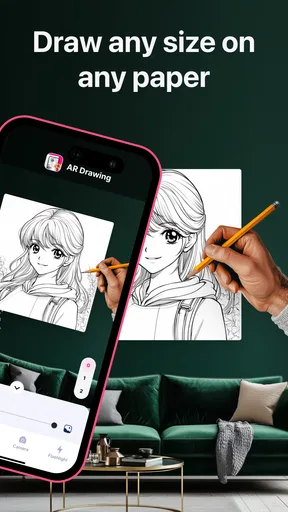
 Analysis by AppCompare
I usually judge drawing apps by what they help me do with a blank page, but AR Drawing: Sketch & Paint makes more sense when I think about the paper on my desk. Its central idea is to use a phone camera to place a reference image over a real surface, giving me something to follow as I draw by hand. That makes it less like a digital canvas and more like a bridge between a picture on a screen and a sketch on paper. I’d reach for it when I want guidance with proportions, not when I want the app to make the artwork for me.
Where this app fits today
In the crowded world of art and design apps, this one takes a practical, beginner-friendly route: it turns tracing into a camera-assisted activity. I can see the appeal for someone who wants to draw a pet, a simple character, or a small decorative design but finds it hard to judge the outline unaided. The camera overlay gives the hand a visual target, while the paper and pencil keep the actual drawing tactile. That combination is the app’s clearest identity.
It is a free app from AR Drawing, with optional in-app purchases listed from $4.99 to $64.99 per item. It is rated for Everyone, and its current version is 5.0.0. The app has an average rating of 4.4 from around 682,000 ratings and has passed 10 million installs. Those figures suggest that the idea has reached a broad audience, though popularity alone cannot tell me whether its workflow suits every kind of artist.
For a casual session, the attraction is immediacy. I don’t need to start by learning a full digital illustration toolkit or setting up a complicated canvas. I can pick a reference, arrange paper, and concentrate on following the visible contours. The trade-off is just as important: this approach helps with placement and shape, but it doesn’t automatically teach why a form looks convincing. If I want to improve, I still need to notice angles, spacing, and the way a few lines define the subject.
The Art of Augmented Reality
First off, the standout feature of AR Drawing: Sketch & Paint is its use of augmented reality. This isn’t just your typical drawing app. You can literally project an image onto any surface using your phone’s camera and trace it in real-time. I mean, imagine projecting a masterpiece onto your living room wall to see how it would look before you commit to painting it. The possibilities are endless and super fun to explore!
Getting Started
Downloading the app was a breeze, and the interface is pretty intuitive. When I first opened it, I was greeted by a simple menu with options to choose from various templates or upload my own images. The app also offers a handy tutorial for first-timers, so you can dive right in without feeling lost. Trust me, even if you’re not tech-savvy, you’ll find your way around in no time.
A steadier tracing workflow
The practical challenge isn’t choosing a picture; it’s keeping the setup comfortable long enough to finish a drawing. I’d put the paper on a stable surface, make sure the phone has a secure place to rest, and test the framing with a few light pencil marks before committing to darker lines. This small rehearsal helps reveal whether the projected outline is too large, too small, or awkwardly positioned. If I’m drawing a face, for instance, I’d check that the eyes and chin fit the page before tracing details.
Worth Reading Before You Choose

Switching to Android Auto Means Rethinking Your Driving Routine

Google Calendar Makes a Crowded Week Easier to Manage

Baby Panda World Brings Quick Play to Modern Phones, but Its Game Library Feels Busy

ESPN’s Live Game View Makes Following Close Games Easier

QuizzLand Review: A Good Fit for Short Trivia Breaks, Not Every Player

Basketball Stars: Multiplayer Is Fast, but Can It Recover When Matches Go Wrong?
There’s also a useful distinction between tracing and copying. With the image visible as a guide, it’s tempting to follow every detail exactly. I get better results when I first map the largest shapes, then move to distinctive features, leaving tiny texture marks for last. That makes the exercise less overwhelming and gives me a chance to notice how the parts relate. For a child’s drawing session, I’d choose a simple silhouette; for an adult practicing, a reference with clear light-dark boundaries can make the outline easier to interpret.
Features that Stand Out
One of the coolest features is the layering option. It allows you to layer your drawings, which is perfect for those complex pieces that require a bit more depth. I had a blast experimenting with different layers and seeing how they interacted with each other. Plus, the app offers a variety of brushes and colors, making it easy to add your personal touch to every project.
Those digital tools matter most before and after the paper-tracing step. A layered approach can help me separate a loose outline from later decisions about color or detail, rather than trying to solve everything in one pass. I’d keep early marks light and treat them as scaffolding: once the main proportions feel right, I can strengthen selected lines and add color on paper. The app’s brushes and colors provide a creative playground, but they don’t remove the need to choose a sensible sequence or to keep the reference readable.
What tracing can and cannot teach
For a first attempt, tracing can be encouraging because it reduces the pressure of inventing a subject from scratch. It is also a useful way to study contour: I can watch where a line turns, where a gap matters, and which shapes make a familiar object recognizable. But a traced result can look stiff if I copy every edge without considering the way my hand moves. I’d use the overlay as a starting guide, then make a second version from memory or draw the subject without it. That follow-up is where I can tell whether I learned the structure or only followed the image.
This is where the app differs from a conventional drawing program. A standard sketching app is better for someone who wants to draw directly on a tablet, undo freely, and build a finished digital image with precise edits. A camera-guided tracing tool is better when the goal is a physical page and a visible reference. Neither approach replaces the other: one emphasizes digital control, while this one puts the pencil-and-paper action at the center. If I need vector precision, extensive editing, or a clean file ready for a professional workflow, I’d choose a dedicated illustration app instead.
Let’s not forget about the sharing capabilities. Once you’re done with your masterpiece, you can easily share it on social media or with your friends. It’s a great way to showcase your work and get feedback from others. I’ve already received a few compliments on my sketches, which is always a nice confidence boost!
Who will enjoy it—and who may not
I’d recommend it to people who want a low-pressure way to begin drawing, parents looking for a guided activity, and hobbyists who enjoy turning a favorite image into a hand-drawn keepsake. It can also suit someone planning a simple sign or a small decoration: use the projected guide to place the main forms, then finish the paper artwork with ordinary materials. A realistic use is a quiet evening at home, when I have a printed sheet or a saved reference, a notebook, and a little time to practice rather than a polished project to deliver.
I would skip it if I mainly want a freehand lesson plan, a serious digital painting workspace, or a tool that evaluates my technique. Tracing can support confidence, but it may become a crutch if I never practice without the guide. It is also not my first choice for a large wall mural: holding a phone in a useful position while working across a broad surface sounds less comfortable than planning the design with a projector or transferring a grid. For detailed work, a stable setup and a reference with uncomplicated shapes will matter more than trying to force a busy image into the process.
Small choices that make a session smoother
One tip I’d use is to crop or simplify a reference before beginning whenever possible. A picture with a clear subject and uncluttered background is easier to interpret than a snapshot full of competing edges. If I’m using my own image, I’d choose one with strong separation between the subject and its surroundings, then focus on the outer contour before worrying about internal detail. That’s a more reliable route to a recognizable sketch than tracing every visible line at once.
I’d also plan the session around the phone’s position, not just the drawing. A loose or inconvenient setup can make me shift the page and lose the alignment, so I’d test the view before putting down careful marks. For a longer piece, working in short sections gives me natural points to check that the paper and guide still line up. This isn’t glamorous advice, but it can prevent the common frustration of reaching the final details and discovering that the reference has drifted.
For color, I’d finish the outline first and then decide which areas actually need filling. The app’s digital colors can help me explore ideas, but the paper version still depends on the materials I choose and how I apply them. A small color test beside the drawing is a sensible step if I’m using markers or paint that might bleed through. That makes the process more deliberate and avoids treating the screen preview as a guarantee of how physical colors will look.
Version, continuity, and expectations
The app was released on June 2, 2023, and version 5.0.0 is its current release. That gives existing users a clear point of reference for what they are using now, but a version number by itself does not tell me which individual changes arrived along the way. I’d judge the current experience by whether its core tracing workflow remains useful for my projects, rather than assuming that a higher version number means a particular new tool or a different drawing method.
If I already have it installed, I’d keep my expectations practical: the reason to return is the same basic appeal of placing a guide over paper and working by hand. Someone considering it for the first time can treat the free entry point as a way to see whether that style fits, while remembering that optional purchases range from $4.99 to $64.99 per item. I’d check the purchase details in the app before paying and decide whether I need anything beyond the core experience. A casual user may be perfectly happy simply trying the workflow first.
Questions about the setup are best answered by thinking through the intended task. If I want to draw on paper, the camera-guided approach is the relevant part; if I want to create an entirely digital illustration, a tablet-based canvas is the more natural option. If I’m unsure whether tracing will help me learn, I’d use it for one guided sketch and then repeat the subject without the overlay. And if I’m choosing a reference, I’d begin with a clear, simple image rather than assuming every photo will translate equally well into an outline.
Final Thoughts
All in all, AR Drawing: Sketch & Paint is a fantastic app for anyone looking to unleash their inner artist. Whether you’re an amateur or a pro, this app offers something for everyone. The augmented reality feature adds a unique twist to the drawing experience, and the user-friendly interface makes it accessible to all. So, why not give it a try? You might just discover a hidden talent you never knew you had!
My recommendation comes with one simple qualification: it is most rewarding when I treat it as a guide, not a substitute for observing and practicing. For a beginner who wants help getting a first outline onto paper, that distinction makes the app approachable without promising instant skill. For an experienced artist who wants precise digital control, it is better viewed as an occasional reference aid than a replacement for a dedicated drawing workspace. I’d try it with a straightforward subject, see whether the camera-led process feels comfortable, and decide from there whether it belongs in my creative routine.
Pros
- Intuitive interface for easy navigation.
- Wide range of brushes for artistic flexibility.
- AR feature enhances drawing accuracy.
- Supports multiple layers for complex art.
- Offline mode available for uninterrupted use.
Cons
- Limited free features without a subscription.
- Occasional lag on lower-end devices.
- AR functionality requires sufficient lighting.
- No social media integration for direct sharing.
- In-app ads can be intrusive at times.
FAQs for AR Drawing: Sketch & Paint
What is AR Drawing: Sketch & Paint?
AR Drawing: Sketch & Paint is an innovative app that allows users to create sketches and paintings using augmented reality technology. By projecting images onto real-world surfaces through your device’s camera, it guides you in drawing over them, making it easier to replicate complex images with precision.
How does the augmented reality feature work?
The app uses your device's camera to overlay digital images onto real-world surfaces. By aligning your camera and using the app's guide, you can trace the image directly onto paper or any surface, enhancing your ability to sketch accurately. This feature is particularly useful for beginners and artists seeking precision.
Is AR Drawing: Sketch & Paint suitable for beginners?
Yes, AR Drawing: Sketch & Paint is designed to be user-friendly, making it ideal for beginners. The guided tracing feature helps users replicate images with ease, building confidence in their drawing skills. The app also offers tutorials and tips that cater to various skill levels, from novice to advanced.
What devices are compatible with AR Drawing: Sketch & Paint?
AR Drawing: Sketch & Paint is available on both Android and iOS devices that support augmented reality features. Ensure your device is AR-compatible, which typically includes newer smartphone models. Check the app store for specific device requirements to ensure smooth performance and functionality.
Are there any in-app purchases or subscriptions?
The app offers a free version with basic features, but additional tools, templates, and advanced functionalities may require in-app purchases or a subscription. These options enhance the user experience by providing more resources for creative projects. Always review the app's pricing details before downloading.


